Konvert - Building a Modern File Conversion App with Next.js and Web APIs
Discover how I built Konvert, a powerful file conversion web application using Next.js, modern Web APIs, and client-side processing. Learn about file handling, format conversion, and progressive web app development.
TL;DR
Learn how to build a privacy-first file converter that runs entirely in the browser using WebAssembly + FFmpeg. Zero uploads, unlimited conversions, works offline. Complete with batch processing and multi-language support.
Who This Is For
- Frontend developers wanting to integrate WebAssembly
- Privacy advocates building client-side tools
- Anyone curious about browser-based file processing
Prerequisites: Basic JavaScript, React knowledge helpful but not required.
I've always been fascinated by how far web technology has come. With Konvert, I wanted to prove that you don't need bloated desktop apps or shady online services to convert files professionally, you can do it all in the browser, safely and privately.
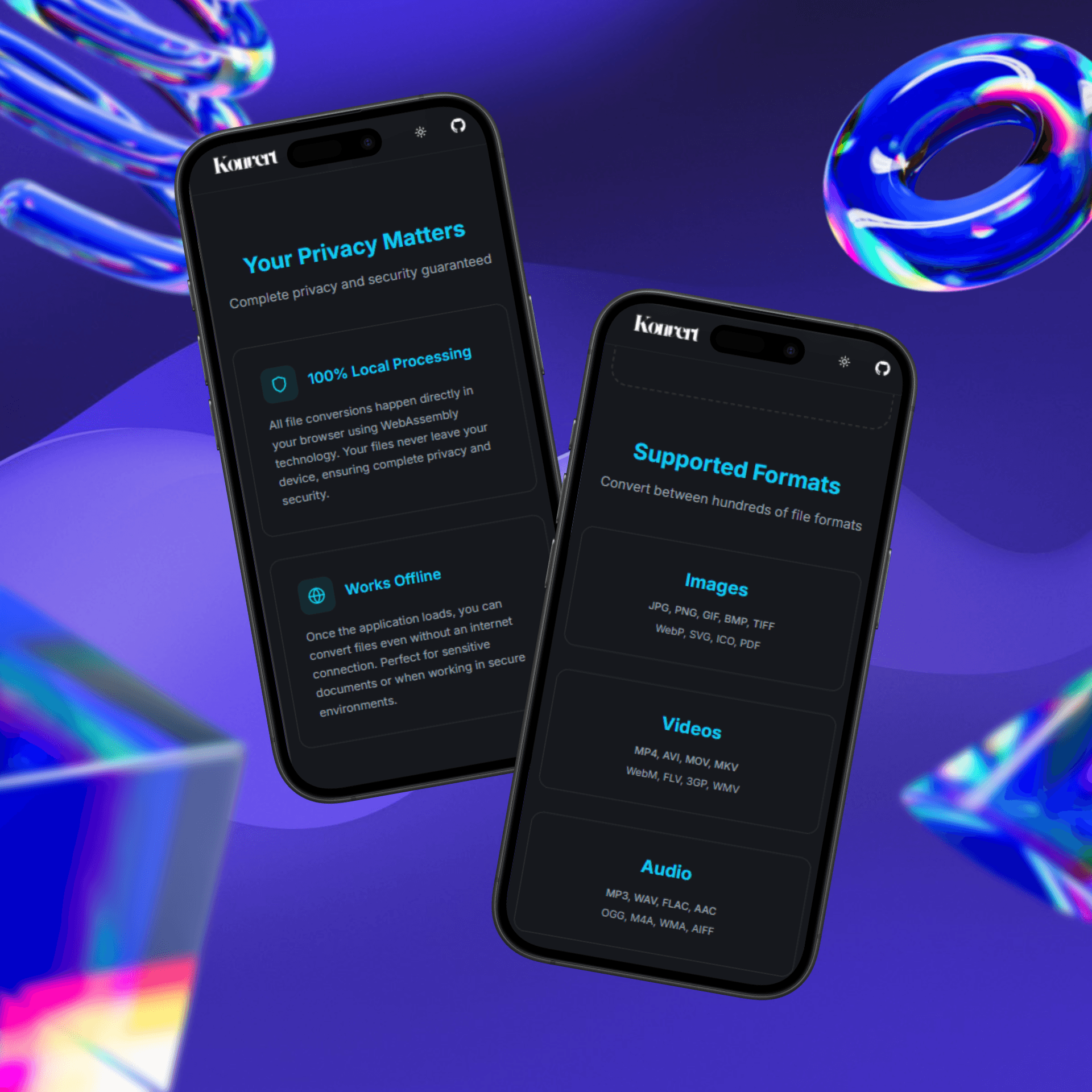
Konvert is a web-based file converter that transforms images, videos, and audio files between hundreds of formats all without uploading anything to a server. Everything runs locally using WebAssembly.
Why I Built It
Most "free" converters online either limit your file size, harvest your data, or bombard you with ads. I wanted something that:
- Processes files instantly
- Respects your privacy
- Works offline once loaded
- Has a clean, modern interface
So I decided to build it myself.
Konvert processes files entirely locally—your files never leave your device. Once the app loads, you can convert files without internet access. It supports batch conversion, multiple languages (English, Arabic, French), and is fully accessible with WCAG 2.1 compliance.
What I Learned
WebAssembly with FFmpeg
Integrating FFmpeg WebAssembly was a game-changer. It let me bring professional-grade file conversion directly into the browser, no native binaries required.
// Example of FFmpeg WebAssembly integration
const ffmpeg = createFFmpeg({ log: true });
await ffmpeg.load();
ffmpeg.FS("writeFile", "input.mp4", data);
await ffmpeg.run("-i", "input.mp4", "output.mp4");
Next.js 14 and TypeScript
I used Next.js 14 with the App Router and Server Components. This setup made the app fast to load and easy to maintain.
UI & Accessibility
I spent time refining the user experience with Tailwind CSS and Radix UI, making sure Konvert is responsive, intuitive, and accessible to everyone.
Performance and Memory
Handling large video and audio conversions taught me a lot about memory management and optimizing WebAssembly performance. Large files (over 500MB) may cause browser slowdowns, and the processing speed is slower than native desktop apps for very large files.
Tech Stack
- Next.js 14 (TypeScript)
- FFmpeg WebAssembly
- Tailwind CSS
- Radix UI
Try It Out
Next Steps
Want to build your own browser-based converter? Start with the FFmpeg.wasm documentation, explore the source code for implementation details, or check out WebAssembly performance optimization techniques.
Have feedback or want to contribute? Drop me a line, I'd love to hear how you're using Konvert or ideas for new features.
— Maruf